CHAT OVERLAY

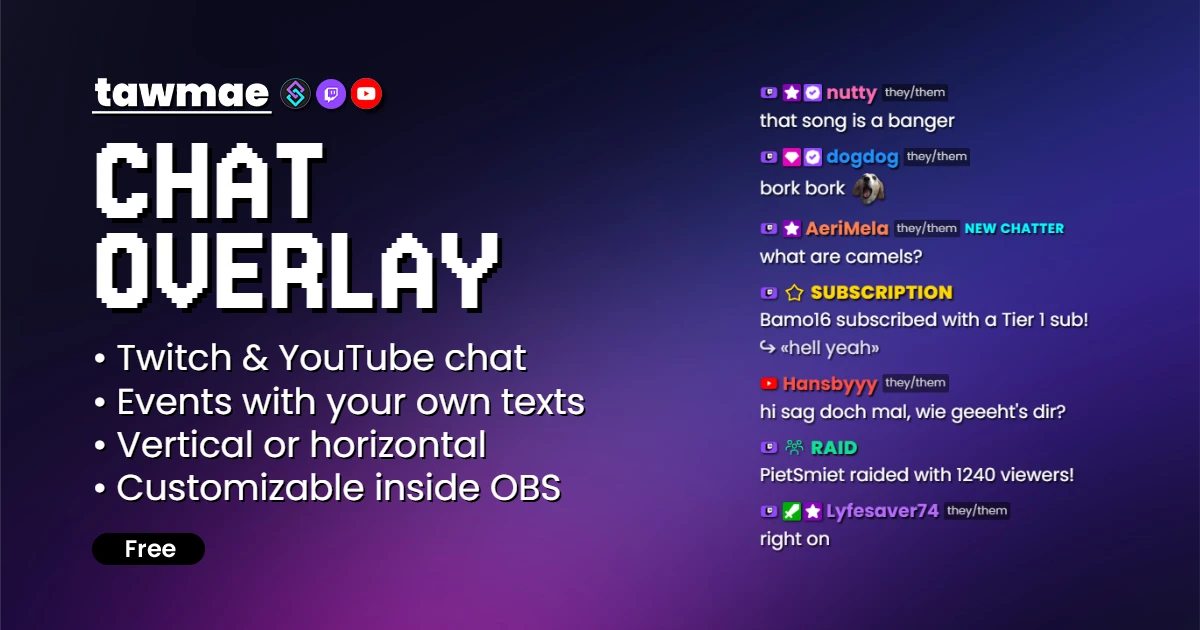
A fully customizable chat overlay for Twitch and YouTube. Supports vertical, horizontal, all kinds of events, donation providers, GIFs and more. Powered by Streamer.bot.

  • Customizable to the full extent (you can honestly customize everything)
  • Custom settings panel within the browser source itself
  • Supports different layout presets
Chat Overlay page card

Quick Access

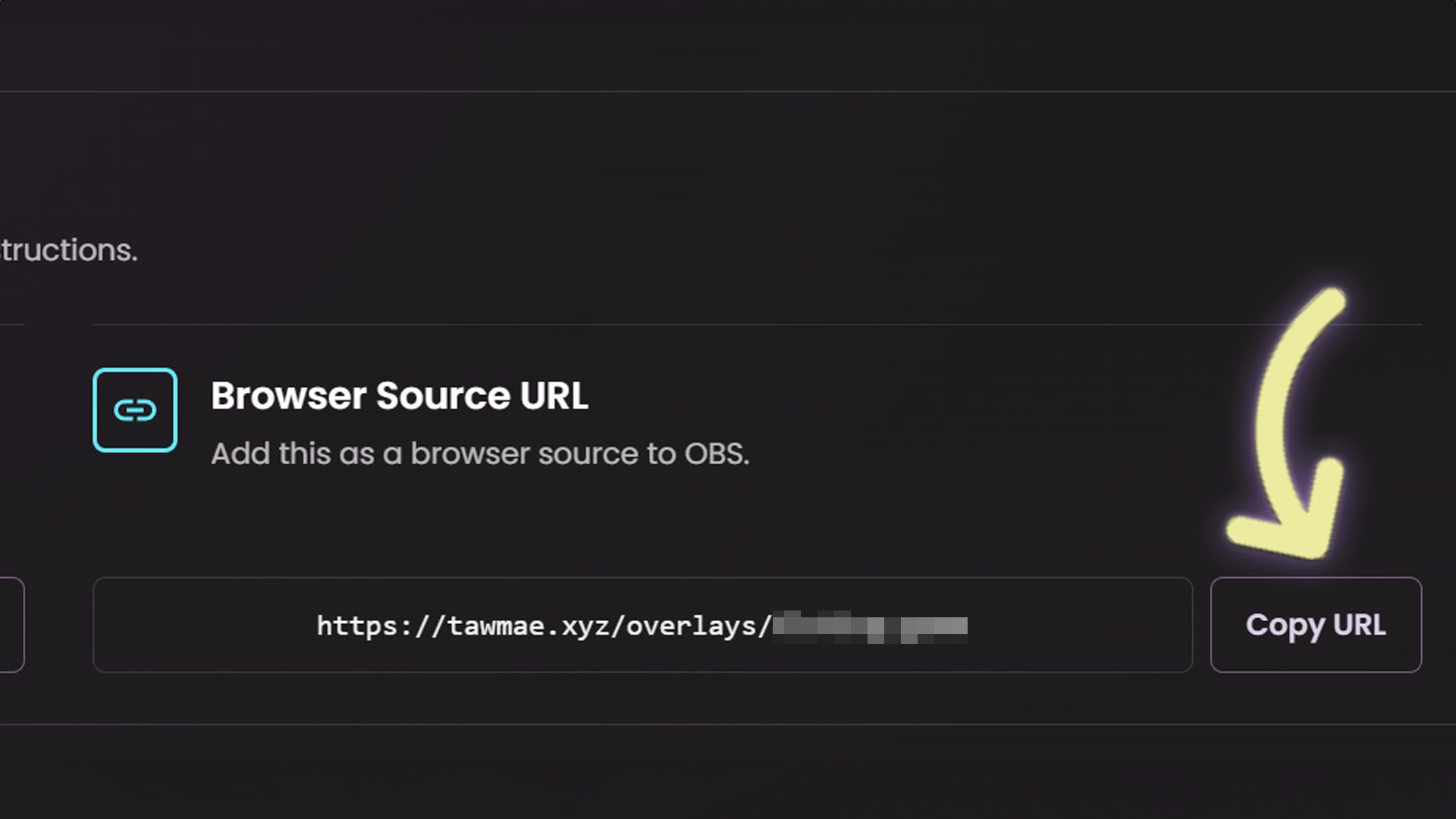
Browser Source URL

Add this as a browser source to OBS.
https://tawmae.xyz/overlays/chat-overlay

Setup Guide

1

Start WebSocket Server

Go to the tab Servers/Clients → WebSocket Server. Enable Auto Start WebSocket Server. Address 127.0.0.1. Port 8080. Optional password. Leave Enforce All Requests unchecked. Start the server.

2

Copy Browser Source URL

Copy the Browser Source URL from Quick Access.

3

Add Browser Source in OBS

In OBS create a new Browser Source. Paste the URL. Set Width and Height to your OBS canvas size, so 1920x1080 for most people.

NoteThe settings panel holds up to five layout presets, for example one for your horizontal and one for your vertical canvas. Add ?layoutPreset=2 to the end of the URL to show preset 2 in that browser source.
4

Done!

That's it, it works right away. To change how it looks, select the browser source in OBS, hit Interact, click once inside the window and press S.

The Settings Panel

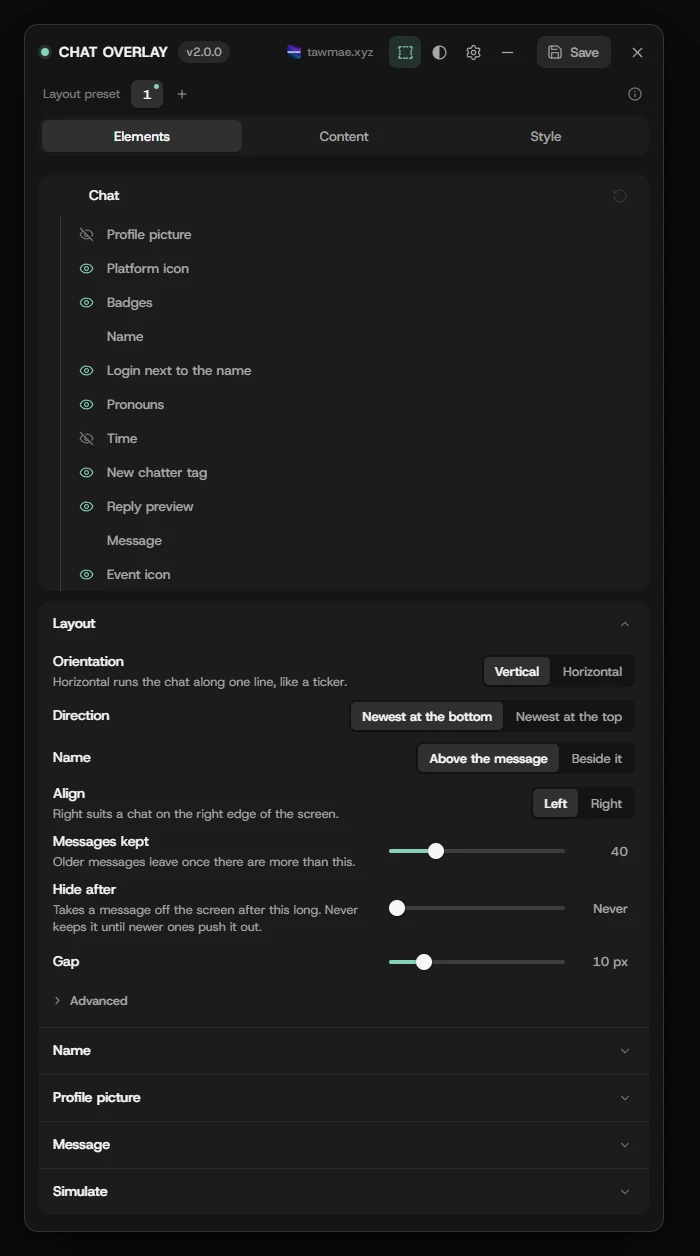
Elements

The eyes at the top show or hide the profile picture, platform icon, badges, pronouns, time, new chatter highlight, reply preview and event icon.
Layout: vertical or horizontal, newest message at the bottom or top, the name above or beside the message, how many messages stay and how long.
Name, Profile picture and Message: colours, sizes, emotes and GIPHY GIFs.
Simulate: sample messages and events, or a whole chat that keeps going, so you see your design before you go live.

On the canvas you drag the chat to move it, the corners scale it and the side handles change its width and height.
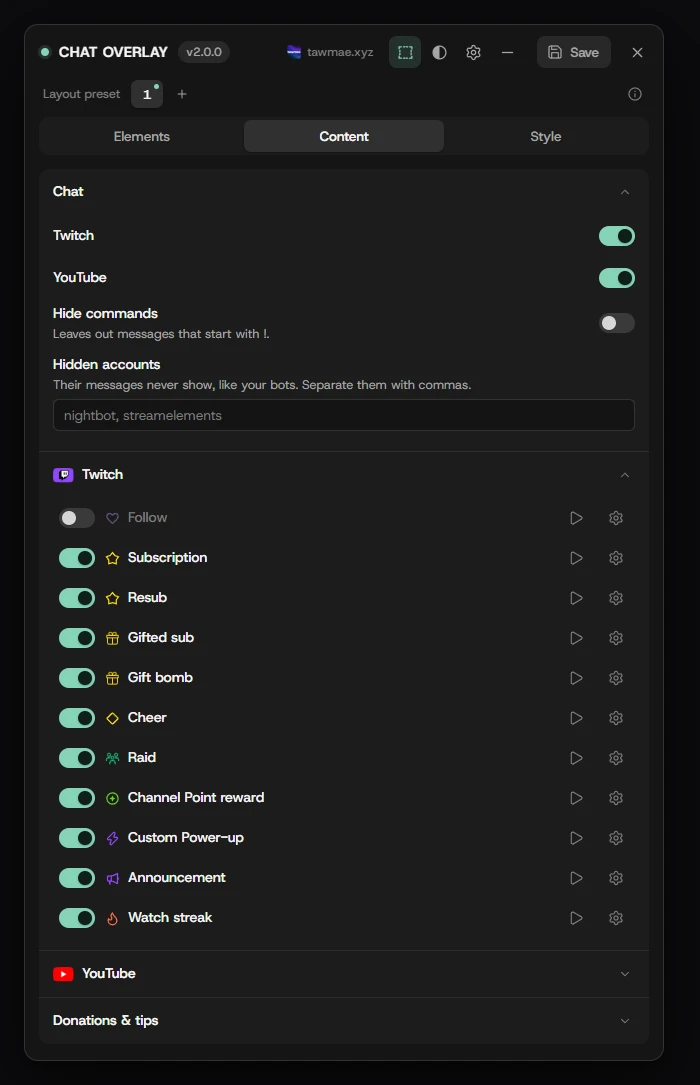
Content

Twitch and YouTube chat on or off, commands hidden, and accounts like your bots left out.

Below that every event: follows, subs, gifts, cheers, raids, channel point rewards, power-ups, announcements, watch streaks, YouTube members, Super Chats, jewels and donations. Switch each one on or off, simulate it with the play icon, or open it with the cog.

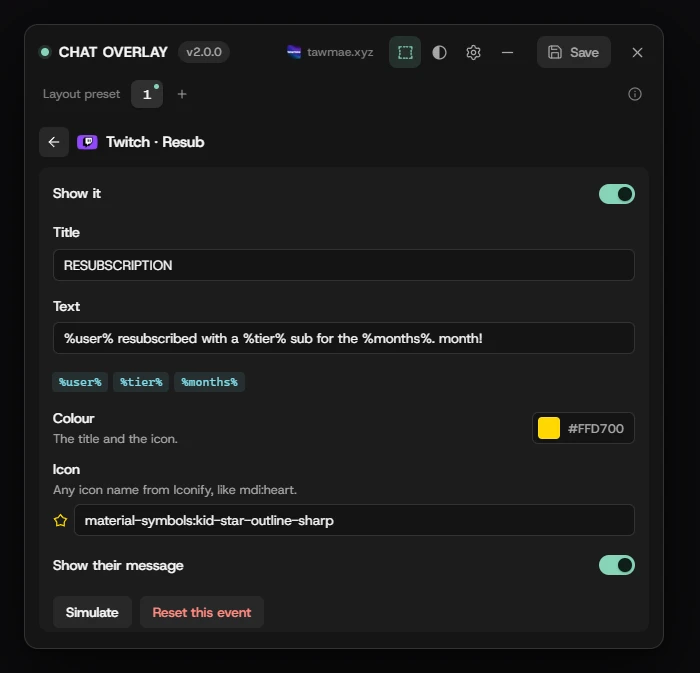
A single event

Each event has its own title and text with variables like %user% or %months%, its own colour and icon, whether the viewer's message shows, and for cheers, raids, rewards and power-ups a minimum amount.

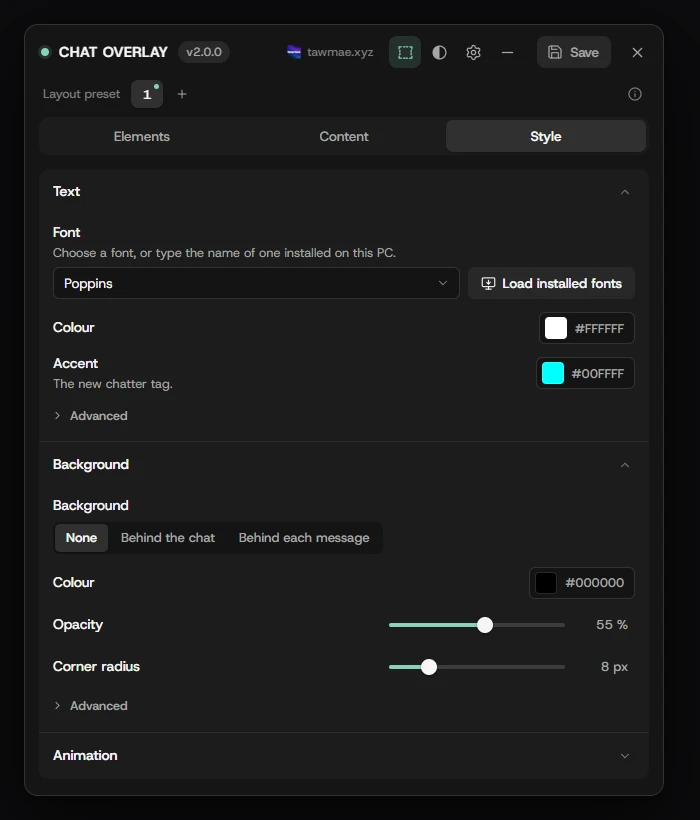
Style

Text: font (Google, system or installed), colours and text shadow.
Background: none, behind the whole chat or behind each message, with colour, opacity, corner radius, blur, outline and padding.
Animation: how new messages come in and how fast.

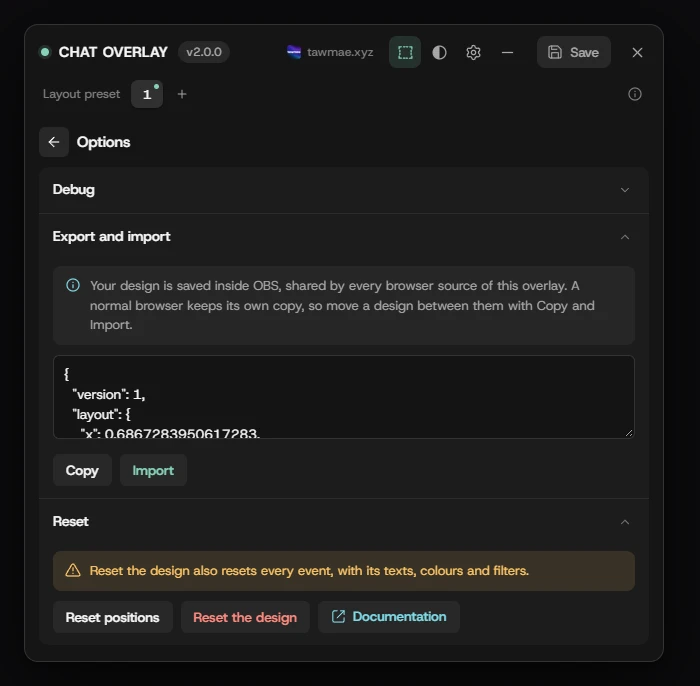
Options

Behind the cog: Debug info to copy when you need help, Export and import for your design, and Reset for the position or the whole design.

The layout presets at the top hold up to five designs, for example one for your horizontal and one for your vertical canvas. Add ?layoutPreset=2 to a browser source URL to show preset 2 there.

FAQ

How do I test it?
Open the panel with S. Under Elements → Simulate you can send sample messages or keep a whole chat going, and the play icon next to every event on Content shows that event. In Streamer.bot, Test on a trigger does not reach the overlay, Simulate does.
Where are the profile pictures?
They are off by default. Turn them on with the eye next to Profile picture on the Elements tab.
Where is my design saved?
Inside OBS, in the browser source's own storage. Every CHAT OVERLAY browser source in that OBS shares it. A normal browser keeps its own copy, so if you set it up there, use Export under Options and Import it in OBS.
How do I hide my bots?
Put their names under Content → Chat → Hidden accounts, separated by commas. Hide commands right above it leaves out every message that starts with !.

Changelog

v1.0.0 latest

  • New Release

User Reviews

4.5 (2 reviews)

Great as well as all other Solutions. Only I miss in these Vertical Chat the Option to setup how many Lines will show and how many characters will be shown in one line. But overall, it´s a very, very good Solution. Thank´s

Before you post your review

Please make sure this is not a support issue. If you have trouble getting it to work, join my Discord, open a support post and attach your logs.

Join the Discord for support ↗