TWITCH YOUTUBE DLL REQUIRED

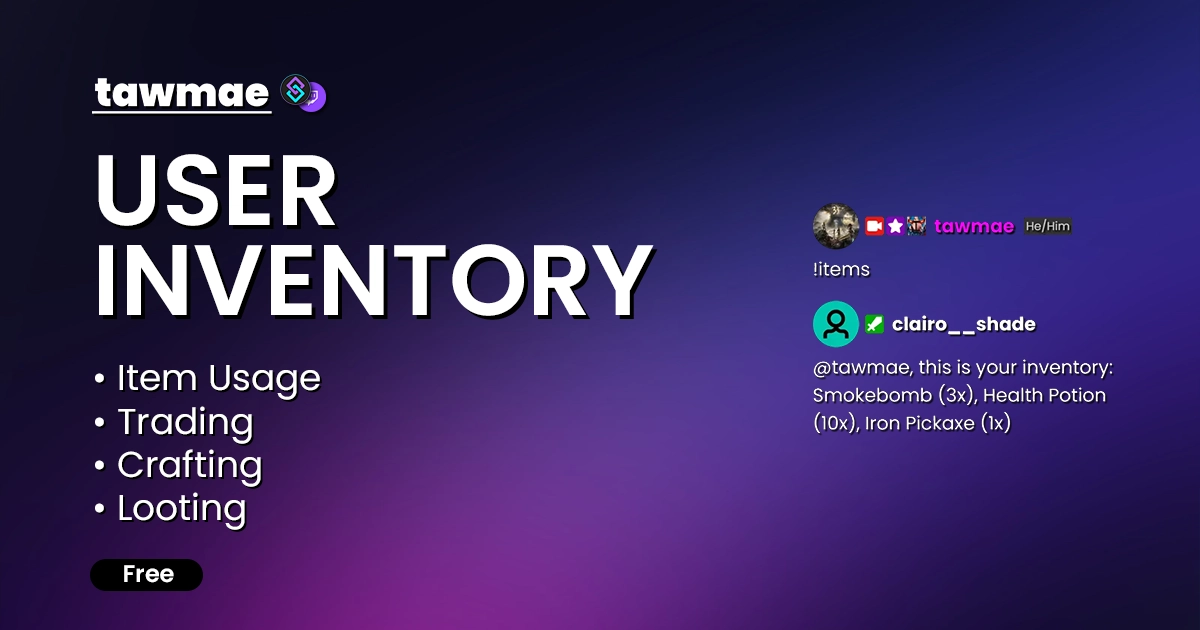
A custom user inventory system for your Twitch & YouTube chatters, powered by Streamer.bot. Loot items, trigger effects, craft and use a marketplace to buy, sell, and trade.

  • Create Loot Drops
  • Give Unique Effects To Items
  • Craft Or Trade Items
  • Extremely customizable
USER INVENTORY Preview 1
USER INVENTORY Preview 2

Quick Access

Copy what you need to get started. Follow the setup guide below for detailed instructions.

Action Import String

Import the actions into Streamer.bot.
Loading…

Setup Guide

1

Copy the Action Import String

Copy the Action Import text from Quick Access.

2

Import the actions into Streamer.bot

In Streamer.bot click Import in the top menu. Paste the text into the Import String field. Click Import at the bottom.

3

Enable the commands

Open the Commands tab. Find the imported group. Right-click the group and click Enable All.

4

Open the Settings UI once

Open the action [USER INVENTORY] [#] Settings. Right-click the Test trigger and hit Test Trigger. Click Save.

NoteIf the TawmaeUI.dll is missing, you'll be asked to auto-download. That popup window may appear behind the Streamer.bot window, so make sure to check if nothing appears.
5

Done!

You can now start to add your first items! Give them a name, a description, a value, change their settings and attach actions to them when they are being used.

Commands

Inventory – Management

!addItem [User] [Item] <Amount (optional)> Access Mods Only

Add an item to a user's inventory. The amount is optional and must be provided in angled brackets.

Example!addItem @PewDiePie Potion <3>
!removeItem [User] [Item] <Amount (optional)> Access Mods Only

Remove an item from a user's inventory. The amount is optional and must be provided in angled brackets.

Example!removeItem @PewDiePie Potion <2>
!inventory Access Everyone

Post the content of your inventory to chat.

Example!inventory
!items Access Everyone

Post the content of your inventory to chat.

Example!items
!useItem [Item] <Amount (optional)> @[targetUser (optional)] Access Everyone

Use an item in your inventory. Amount in angled brackets is optional. If a target user is specified with @, target variables are populated and the action can affect them.

Example!useItem Potion <2> @PewDiePie

Inventory – Trading

!tradeItem [User] [Offered Item] <Offered Amount (optional)> | [Wanted Item] <Wanted Amount (optional)> Access Everyone

Offer an item trade to a user. Offered and wanted items are separated by a pipe symbol.

Example!tradeItem @PewDiePie Potion <2> | Elixir <1>
!checkOffers Access Everyone

Post a list of trade offers for you into chat.

Example!checkOffers
!acceptTrade [User] Access Everyone

Accept a user's trade offer.

Example!acceptTrade @PewDiePie
!rejectTrade [User] Access Everyone

Reject a user's trade offer.

Example!rejectTrade @PewDiePie

Inventory – Economy & Info

!itemValue [Item] Access Everyone

Check the currency value of an item.

Example!itemValue Potion
!sellItem [Item] <Amount (optional)> Access Everyone

Sell an item for currency points. The optional amount multiplies with its value.

Example!sellItem Potion <3>
!buyItem [Item] <Amount (optional)> Access Everyone

Buy an item for currency points. The optional amount multiplies with its value.

Example!buyItem Potion <3>
!itemList Access Everyone

Post all available items into chat. Advanced settings can append their value to the list.

Example!itemList
!itemDescription [Item] Access Everyone

Post the item's description to chat.

Example!itemDescription Potion
!itemLimit [Item] Access Everyone

Post the item limit to chat.

Example!itemLimit Potion
!craftItem [Item] Access Everyone

Craft an item.

Example!craftItem Potion
!recipe [Item] Access Everyone

Post the item's crafting recipe into chat.

Example!recipe Potion

Settings UI

General

Core behavior of the inventory system. Configure what viewers are allowed to do and how the bot responds. Examples and screenshots for setting up your item pool can be found at tawmae.xyz/user-inventory#faq.

  • Allow Buying If enabled, users can buy items using your currency.
  • Allow Selling If enabled, users can sell items from their inventory for your currency.
  • Allow Trading If enabled, users can trade items with each other.
  • Allow Crafting If enabled, users can craft items based on your crafting recipes.
  • Allow Multiple Item Use If enabled, users can use items with an amount greater than 1. The linked action is executed once per used item.
  • Send Messages As Replies If enabled, the bot responds using reply messages instead of regular chat messages.

Items

Create and manage your items. Define their name, description, value and which Streamer.bot action is executed when they are used.

  • Item Definitions Add, edit and remove items in your pool. Each item has a name, description, value and an action that is triggered when the item is used.
  • Action Selection Choose which Streamer.bot action is executed when an item is used. The list can be refreshed to include newly created actions.

Loot Tables

Create loot tables that randomly drop items based on configured probabilities.

  • Loot Tables Define multiple loot tables and assign items to them. Each item in a table has its own drop chance.
  • Drop Probabilities Configure the probability for each item in a loot table. The probabilities per table should add up to 100%.

Crafting

Define crafting recipes that turn a combination of items into a new result item.

  • Crafting Recipes Create recipes by choosing ingredient items and their amounts, as well as the resulting item.
  • Ingredients & Result Use the crafting menu to configure the required ingredients and the crafted result for each recipe.

Advanced

Advanced options for how items interact with your currency system, plus tools for converting, cleaning and resetting inventories.

  • Append Value In Item List If enabled, the item value is appended in brackets when posting the item list to chat.
  • Currency Variable Name Name of the Streamer.bot global variable used for your currency system (e.g. 'points'). Only needed if you use a currency extension.
  • Currency Name Display name of your currency as used in chat messages (e.g. points, coins, snacks). Only needed if you use a currency extension.
  • Convert Old Inventory Converts inventories from the old inventory extension into this system. Items are added on top of existing ones.
  • Clear Unlisted Items Removes all items from user inventories that are no longer defined in the Settings UI. This action cannot be undone.
  • Reset Single Inventory Reset the inventory of a single specified user. This action cannot be undone.
  • Reset All Inventories Completely resets all user inventories. All items are removed. This action cannot be undone.

Chat Responses

Configure all chat messages used by the inventory system. Use a single hyphen to disable a specific response. Variables are listed below each textbox; fields can be reset to default individually.

FAQ & Examples

How do I add a specific item with other triggers than the '!addItem' command?
You can give users specific items from any trigger (commands, channel points, etc.) by setting the correct arguments and then calling the add-item helper action.

1. Create a new Action.
2. Add three subactions: Core → Arguments → Set Argument.
3. Open [USER INVENTORY] [M] 1 - Add Item and check which arguments it expects: targetUserName, itemName and itemAmount.
4. In this example we still use a command, but it can be any trigger you want. Our command is '!potion' and should grant 5 Health Potions to the redeemer.
5. Set targetUserName to %userName%, because the redeemer is also the receiving user. Set itemName to Health Potion and itemAmount to 5.
6. Add another subaction: Core → Actions → Run Action and place it below the three Set Argument subactions.
7. Select [USER INVENTORY] [M] 1 - Add Item and enable Run Action Immediately.
8. Save. Whenever the trigger runs, the configured item and amount are added to the user's inventory.
How do I create an item effect?
Item effects are just regular Streamer.bot actions that are executed when the item is used.

1. Decide what your item should do. In this example we create Smoke Bomb which clears Twitch chat when used.
2. Create a new Action and name it something recognizable, e.g. Item Effect: Smoke Bomb.
3. You do not need any trigger. The item usage itself will trigger this action, so leave the trigger section empty.
4. Add the desired effect as a subaction. For our example, add Twitch → Chat → Clear Chat Messages. Nothing else is required in the action.
5. Open the Settings UI and go to the Items tab.
6. Create an item named Smoke Bomb, optionally give it a value and select the action you just created as its effect.
7. Save. You can now use '!useItem Smoke Bomb' to clear your chat.
How do I create an item effect with a targeted user?
Targeted item effects work like regular item effects but additionally make use of target variables populated by the inventory system.

1. Create a new Action for your effect and name it recognizably, e.g. Item Effect: Rusty Dagger. No triggers required.
2. When using an item with a target, e.g. '!useItem Rusty Dagger @tawmae', the extension populates:
  - %hasTarget% (either True or False)
  - %targetUser%, %targerUserName%, %targerUserId% (target user info when a target exists)

3. Add a subaction: Core → Logic → If/Else and check %hasTarget% Equals True.
4. In the True Result branch, implement what should happen when a valid target is provided (you can use the target variables here).
5. In the False Result branch, implement what should happen when no target was provided (for example, send an error message).

Note: If the item should only be usable on a target and you want to return it if no valid target was given, add a Run Action subaction in the else branch and select [USER INVENTORY] [M] 7 - Return Used Item.
How do I check if a user has a certain item in their inventory?
You can pre-check whether a user owns a specific item and branch your logic based on the result.

1. Create a new Action.
2. Add three subactions: Core → Arguments → Set Argument.
3. Open [USER INVENTORY] [M] 5 - Check If User Has Item and note its arguments: targetUserName, itemName, itemAmount.
4. In this example we have a '!timeout' command and want to check if the target has a Trap Card to potentially repel the timeout.
5. Set targetUserName to %rawInput% (the redeemer enters the target name as command input). Set itemName to Trap Card and itemAmount to 1.
6. Add a subaction: Core → Actions → Run Action and place it below the Set Argument subactions.
7. Select [USER INVENTORY] [M] 5 - Check If User Has Item and enable Run Action Immediately.
8. Running this will populate %hasItem% (either True or False). Add a new Core → Logic → If/Else subaction and check %hasItem% Equals True. In the True Result branch handle the case where the user owns the item; in the False Result branch handle the case where they do not.
How do I create a loot table?
Loot tables define item pools with individual drop chances. They can later be used to loot random items.

1. Open the Settings UI and go to the Loot Tables tab.
2. Enter a name for your loot table, for example Chest (Epic). This name is later used in [USER INVENTORY] [L] 1 - Loot Random Item to choose the pool.
3. Add items that you previously created in the Items tab, give them an amount and set their loot chance. Chances can be decimal values.
4. Make sure the total chance of all items in the table adds up to exactly 100%.
5. Click Save. The loot table is now ready to be used.
How do I create a random loot action and assign one of my loot tables?
Use the random-loot helper action and pass it a target user and the loot table name.

1. Create a new Action.
2. Add two subactions: Core → Arguments → Set Argument.
3. Open [USER INVENTORY] [L] 1 - Loot Random Item and check its arguments: targetUserName and lootTableName.
4. In this example we want a '!loot' command that users can redeem once per stream to get a random item from a loot table called Daily Loot Chest (already created in the Loot Tables tab).
5. Set targetUserName to %userName%, since the redeemer is also the receiver. Set lootTableName to Daily Loot Chest (must match the loot table name exactly).
6. Add a subaction: Core → Actions → Run Action and place it below the two Set Argument subactions.
7. Select [USER INVENTORY] [L] 1 - Loot Random Item and enable Run Action Immediately.
8. Done. When the action runs, a random item from that loot table is looted. The action also populates %lootedItemName%, %lootedItemAmount% and %lootedItemChance% for further use.
How do I set up a Trap Card effect?
A Trap Card effect is a combination of a targeted item effect and an inventory check, allowing the target to turn the effect back on the redeemer.

In the example setup:

• There is an item Ban Hammer that normally timeouts a user for 10 seconds.
• If the target has a Trap Card in their inventory, the timeout is instead applied to the redeemer.

The logic flow is:
1. Use the targeted item effect pattern to get %hasTarget% and the target variables.
2. Check if the Ban Hammer usage had a valid target.
3. If there is a target, use the item-check pattern to see if that target owns a Trap Card.
4. If the target has the card, apply the timeout to the redeemer instead. Otherwise, apply the timeout normally to the target.

For all exact subactions, conditions and variable wiring, refer to the Trap Card example screenshot in the original documentation.

Changelog

v1.1.4 latest

  • New Added YouTube support
  • Changed Bumped required DLL version to v.1.7.5

User Reviews

5.0 (2 reviews)

I'm using it for a while already and it helped me a lot to maintain some Channel Rewards in form of an Item in a rather playful way for the user, while reducing the numbers of Channel Rewards themselves. As I am preparing for my Spooktober Streams, I am currently rearenging things and have two ideas for a future update, that might be cool. I just to write them down here and maybe more people would find it cool, or got other ideas. - Hide Items on Item List That way you can have 'Easter Eggs' that people can find - Within Lootboxes with a very low probability. - Use Currency to buy a specific Lootbox Given I've got a Lootbox set on Bits, that might be a neat way for users to ditch some items via !sell and !buy a lootbox that is more valuabe - without using Bits all the time (yet increase Chat interaction). !loot Spooky e.g. Gives the Spook Lootbox for 1.000 Currency

Wasily One of my all time favorite imports. The work you've done here for the community , and for free, is truly commendable. Thank you

Before you post your review

Please make sure this is not a support issue. If you have trouble getting it to work, join my Discord, open a support post and attach your logs.

Join the Discord for support ↗