MESSAGE HIGHLIGHTER

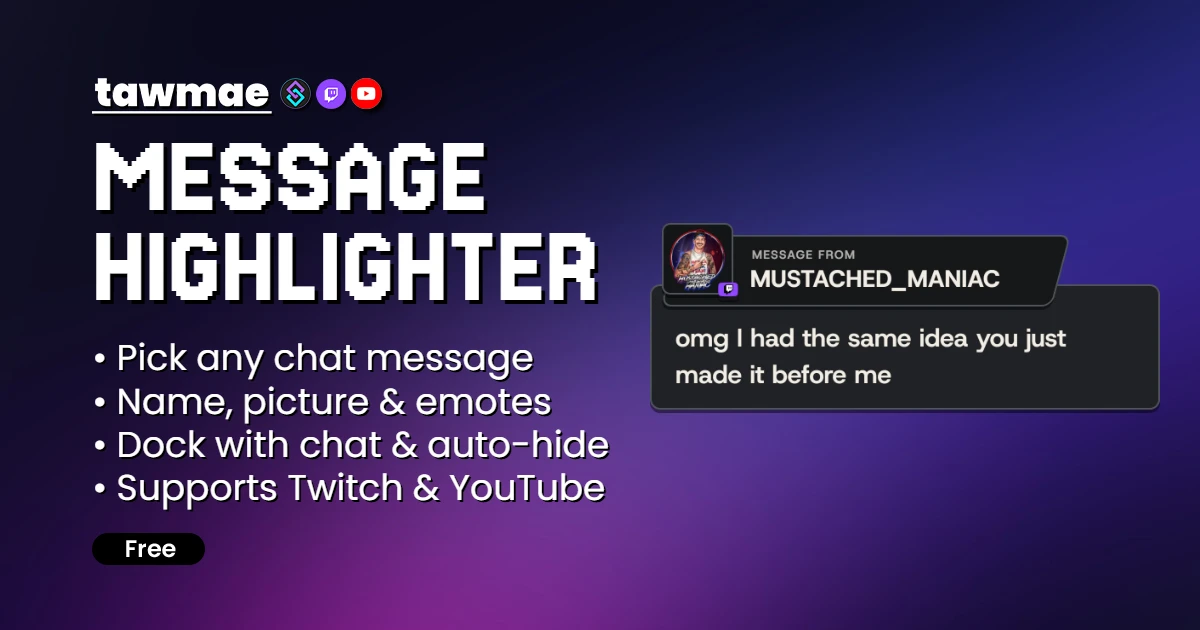
Pick any chat message in the dock and highlight it on stream, with the viewer's name, profile picture and emotes. Works with Twitch & YouTube and is fully customizable! Powered by Streamer.bot.

Message Highlighter page card

Quick Access

Action Import String

Import the actions into Streamer.bot.
Loading...

Browser Source URL

Add this as a browser source to OBS.
https://tawmae.xyz/overlays/message-highlighter

OBS Dock URL

Add this as a custom dock to OBS.
https://tawmae.xyz/overlays/message-highlighter-dock

Setup Guide

1

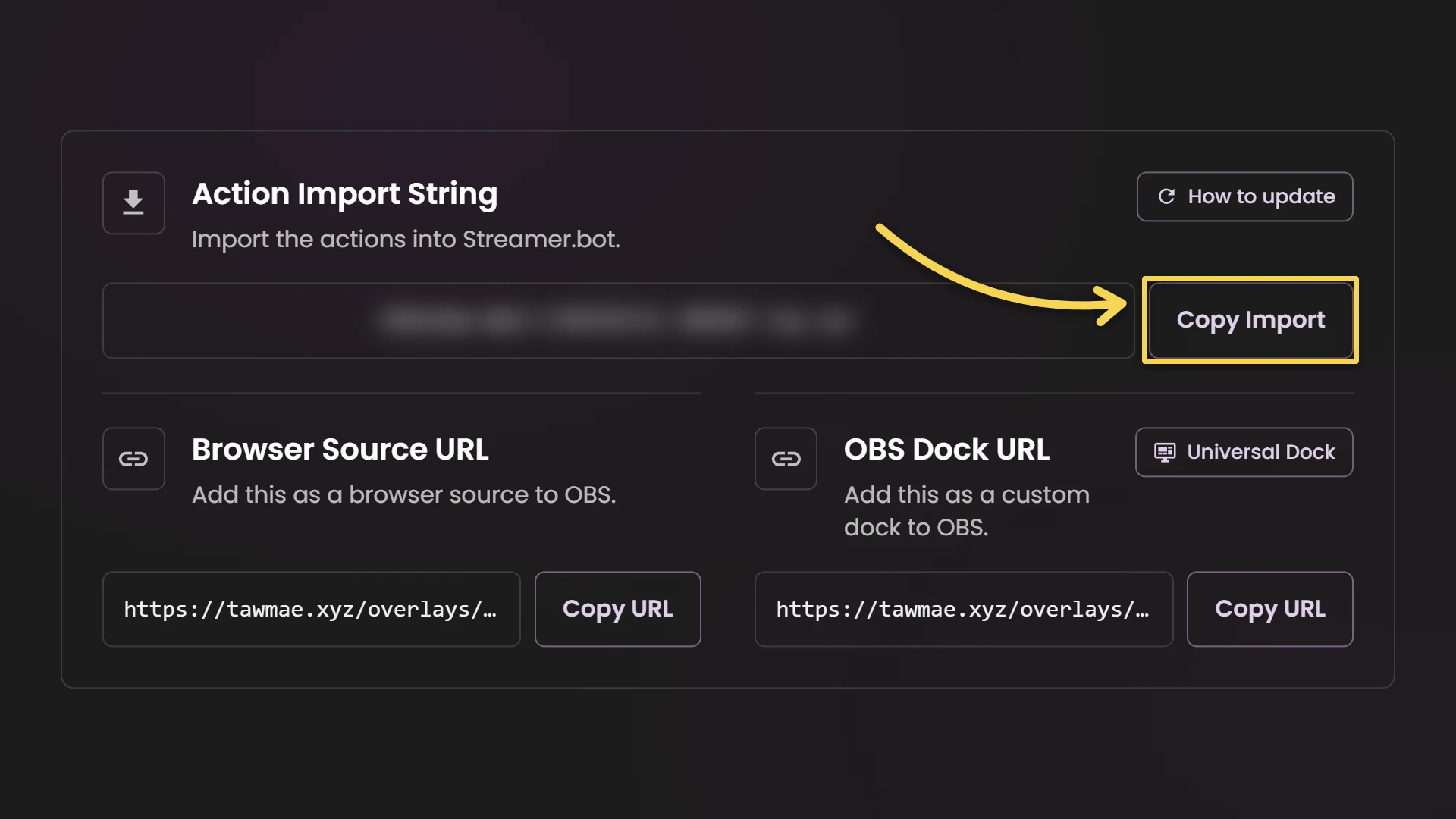
Copy the Action Import String

Copy the Action Import String from Quick Access.

2

Import into Streamer.bot

In Streamer.bot click Import in the top menu. Paste the text into the Import String field. Click Import at the bottom.

NoteRequires TawmaeUI.dll 1.9.1 or newer. Get it at tawmae.xyz/dll if you don't have it yet.
3

Start WebSocket Server

Go to the tab Servers/Clients → WebSocket Server. Enable Auto Start WebSocket Server. Address 127.0.0.1. Port 8080. Optional password. Leave Enforce All Requests unchecked. Start the server.

4

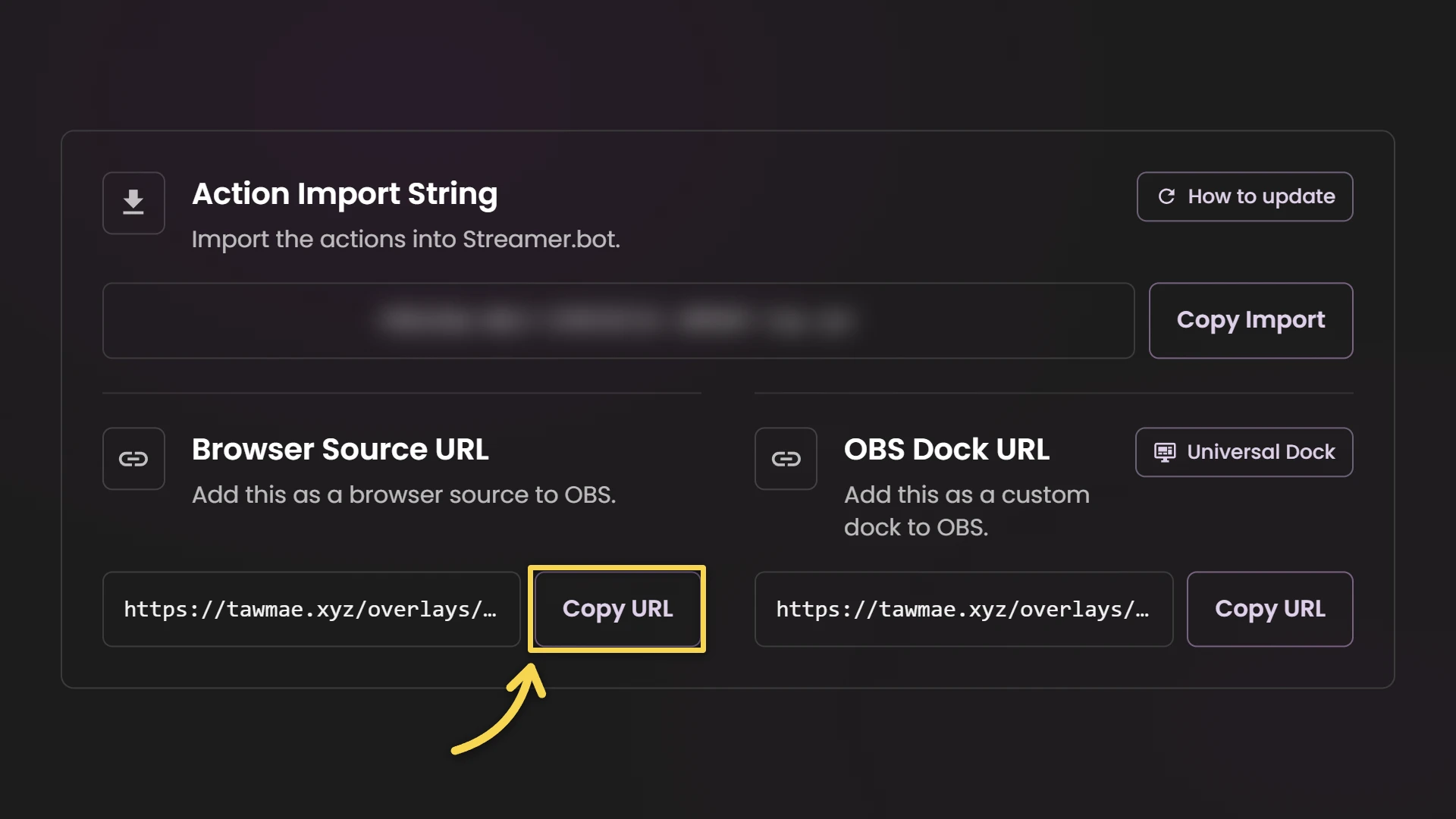
Copy Browser Source URL

Copy the Browser Source URL from Quick Access.

5

Add Browser Source in OBS

In OBS, create a new Browser Source. Paste the copied URL into URL and set the Width and Height to your OBS canvas size (e.g. 1920x1080).

WarningIf you want to have the browser source in multiple scenes, don't create a second browser source. Instead, use nested scenes or source clones.
6

Add the dock

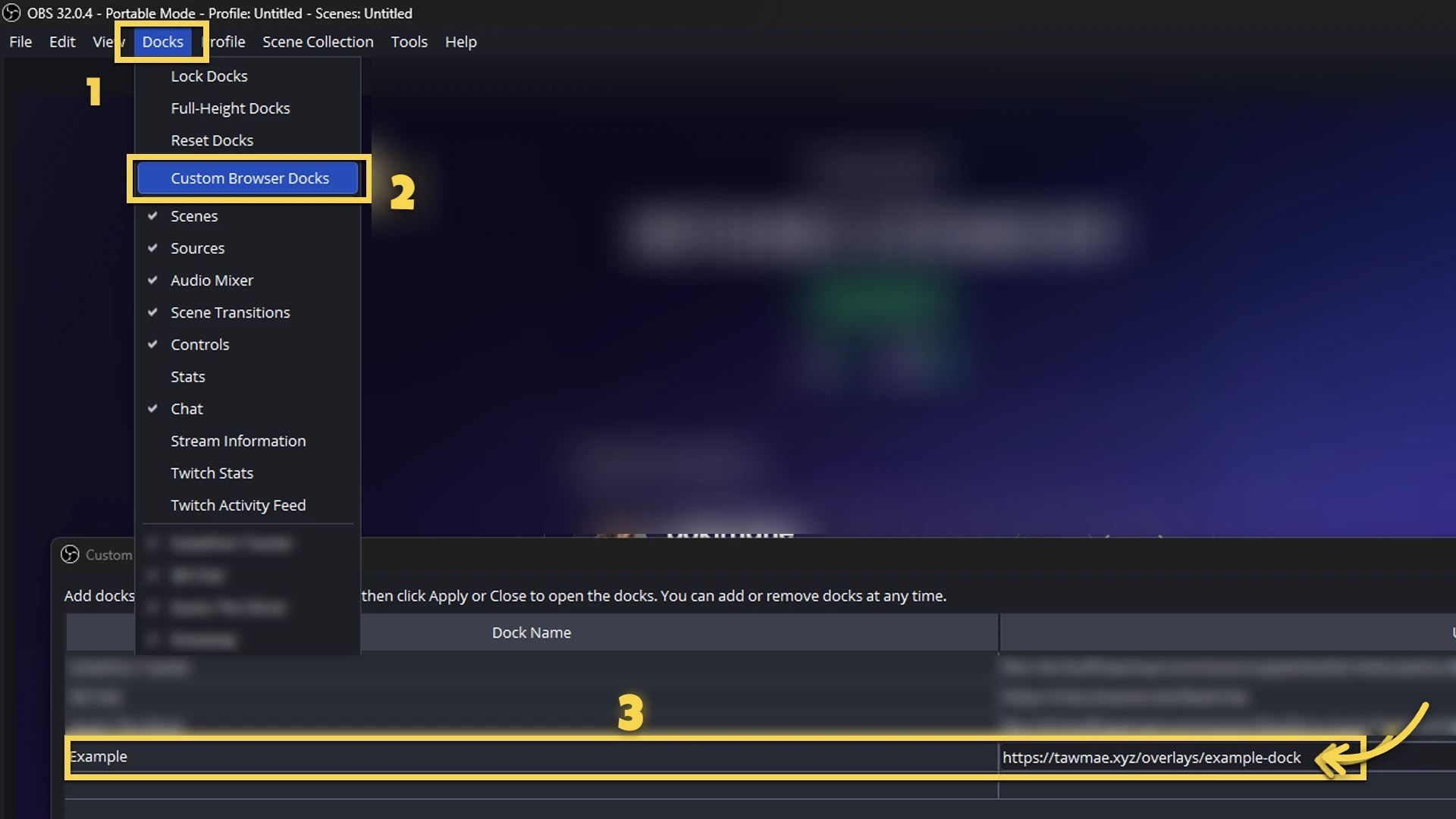
Copy the OBS Dock URL from Quick Access. In OBS click Docks → Custom Browser Docks, give it a name and paste the URL.

7

Customize it

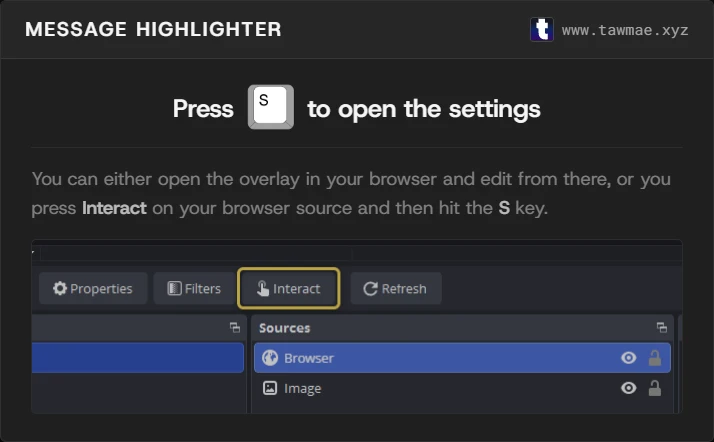
Right-click the browser source, click Interact and press S.

8

Done!

Click a message in the dock and it shows up on stream.

OBS Dock

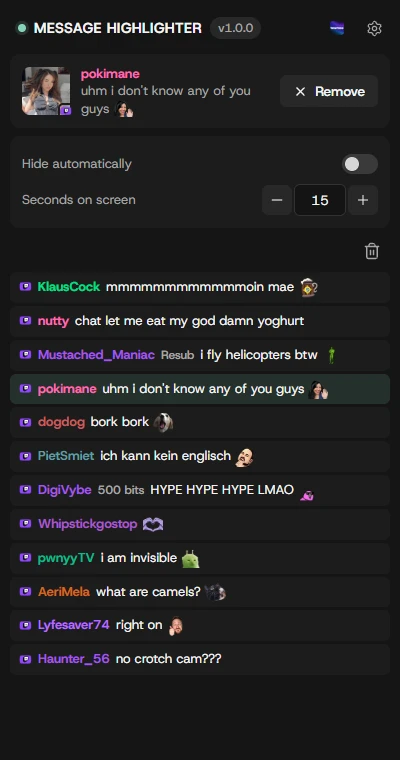
Pick a message

Your Twitch and YouTube chat, right in OBS, plus the messages from resubs, cheers, channel point rewards, Power-ups, watch streaks, Super Chats and member milestones. Click a message to put it on stream; it stays pinned at the top with Remove to take it off again. Chat stops moving while your mouse is over it or you scroll up, so nothing jumps away from you. The bin above the chat clears the list.

Turn on Hide automatically to take the message off screen again after the seconds you set (15 by default).

Overlay Settings

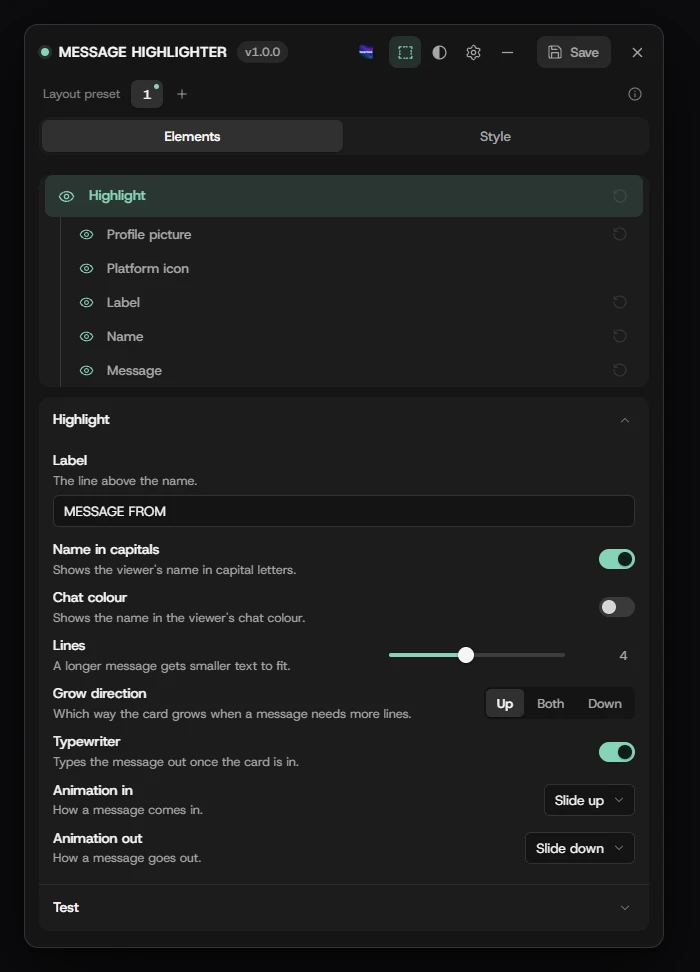
Elements

Right-click the browser source, choose Interact and press S. The profile picture, platform icon, label, name and message each have an eye to show or hide them. Drag the card right on the overlay, scale it from the corners and change its width from the sides.

Change the label, show the name in capitals or in the viewer's chat colour, pick how many lines a message gets before the text shrinks and which way the card grows, have the message typed out, and pick how it comes in and goes out: slide, swipe, fade or pop. Up to 5 layout presets, one per canvas.

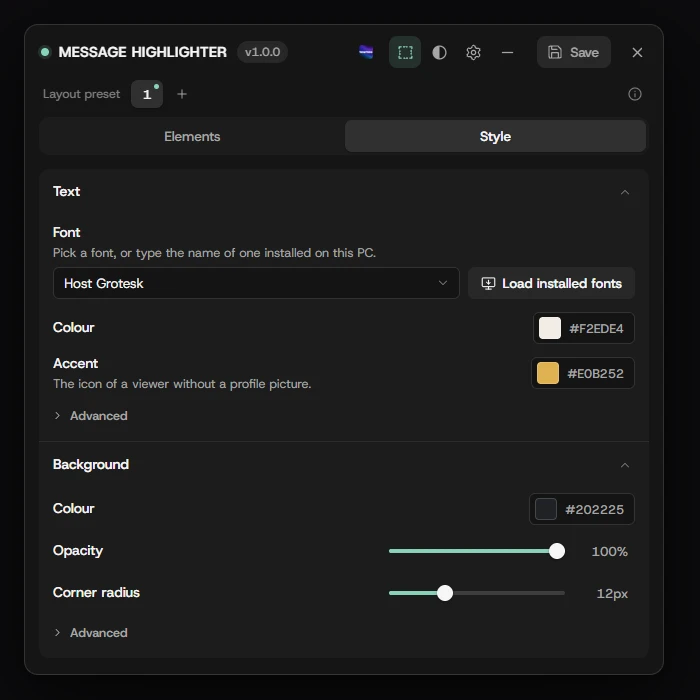
Style

Font, text colours, the card's background, corner radius, outline and shadow.

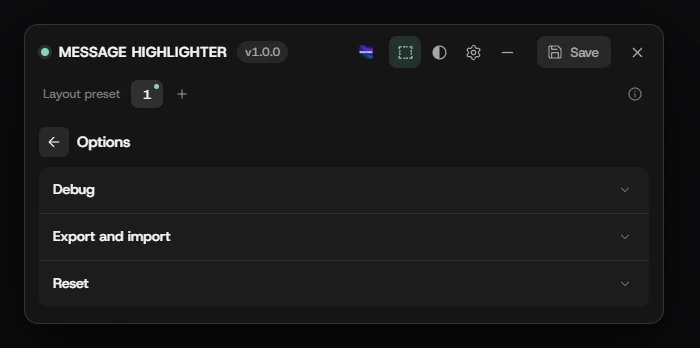
Options

Behind the cog: Debug info to copy when you need help, Export and import for your design, and Reset.

Settings UI

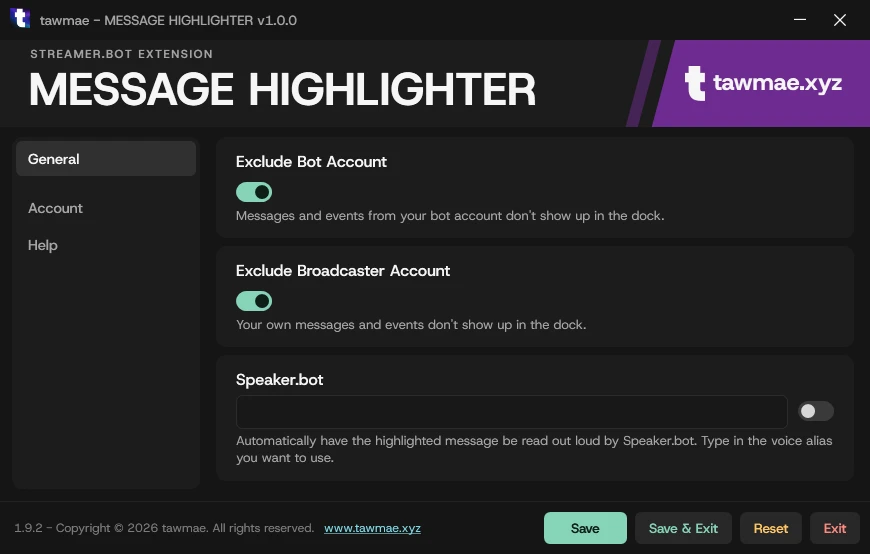
General

Everything else lives in the dock and in the overlay itself.

  • Exclude Bot Account Leaves messages and events from your bot account out of the dock. On by default.
  • Exclude Broadcaster Account Leaves your own messages and events out of the dock. On by default.
  • Speaker.bot Has the highlighted message read out loud by Speaker.bot. Type in the voice alias you want to use.

FAQ & Examples

Can I highlight a message straight from the Streamer.bot chat?
Yes! Create a new action in Streamer.bot and add the sub-action Core → C# → Execute C# Method. Pick MESSAGE HIGHLIGHTER Handler and the method HighlightViaStreamerbotChat.

Then add that action as a quick action for chat messages in the Streamer.bot chat. Clicking it on a message puts that message on stream, same as clicking it in the dock.
Which events show up in the dock besides chat messages?
Every event that comes with a message from the viewer. Events without a message are left out.
  • Twitch: resubs, cheers, channel point rewards with text, Highlight My Message, Message Effects, custom Power-ups and watch streaks
  • YouTube: Super Chats and member milestones
Each one gets its own icon and a small note in the dock, like the bits of a cheer or the amount of a Super Chat. Click it like any chat message to put it on stream.

Changelog

v1.0.0 latest

  • New Release

User Reviews

– (0 reviews)

No reviews yet :( But you can be the first one!

Before you post your review

Please make sure this is not a support issue. If you have trouble getting it to work, join my Discord, open a support post and attach your logs.

Join the Discord for support ↗