DLL REQUIRED This extension requires TawmaeUI.dll in your Streamer.bot directory. On first setup, it can auto-download or you can grab it from tawmae.xyz/dll.

SOCIAL MEDIA ROTATOR

5.0(1)

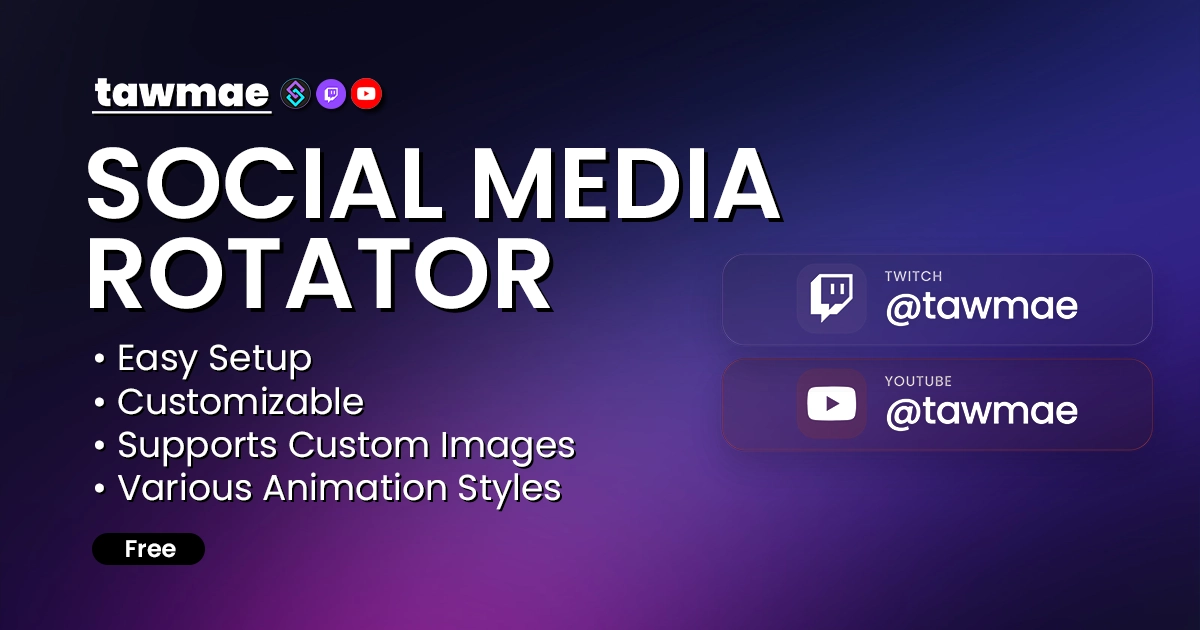
Show off and advertise your socials. Extremely customizable and easy to set up. Powered by Streamer.bot

  • Supports custom images and icons.
  • Easy setup
  • Extremely customizable
SOCIAL MEDIA ROTATOR preview

Quick Access

Copy what you need to get started. Follow the setup guide below for detailed instructions.

Action Import String

Import the actions into Streamer.bot.
Loading…

Browser Source URL

Add this as a browser source to OBS.
https://tawmae.xyz/overlays/social-media-rotator

Setup Guide

1

Copy the Action Import String

Copy the Action Import text from Quick Access.

2

Import the actions into Streamer.bot

In Streamer.bot click Import in the top menu. Paste the text into the Import String field. Click Import at the bottom.

3

Run the Settings UI once

Open the action [SOCIAL MEDIA ROTATOR] # - Settings. Right-click the Test trigger and hit Test Trigger to open the Settings UI once.

If the TawmaeUI.dll is missing, you’ll be asked to auto-download. That popup window may appear behind the Streamer.bot window, so make sure to check if nothing appears.
4

Start WebSocket Server

Go to the tab Servers/Clients → WebSocket Server. Enable Auto Start WebSocket Server. Address 127.0.0.1. Port 8080. Optional password. Leave Enforce All Requests unchecked. Start the server.

5

Copy Browser Source URL

Copy the Browser Source URL from Quick Access.

6

Add Browser Source in OBS

In OBS, create a new Browser Source, name it whatever you want. Then paste the copied URL into URL and set the Width and Height to your OBS canvas size (e.g. 1920x1080)

If you want to have the browser source in multiple scenes, don't create a second browser source. Instead, use nested scenes or source clones.
7

Done!

And you are done! You can not customize everything to your liking!

Settings UI

Social Links

Set up the social accounts that rotate in the overlay. Each entry becomes one slide and updates live after saving.

  • Social Media Links
    This is the main list of social profiles shown in the rotator. Every row becomes one slide in the overlay.
  • Handle / Username
    The first text field is the main handle shown on the slide, for example @tawmae.
  • Title
    The second text field is the smaller platform label, for example TWITCH, YOUTUBE, or BLUESKY.
  • Icon Or Image
    You can use an Iconify icon key like mdi:twitch or a full image URL if you want to use a custom platform logo.
  • Custom Color Override
    Each social link can optionally use its own platform color. When enabled, that color is blended into the overlay background, border, and icon background for that slide.
  • Slide Order
    The order of the entries in the list is the order the overlay rotates through them.

Appearance

Manage the appearance settings for the overlay, including fonts, colors, and animations. Hit 'Save' to instantly apply them.

Changelog

v1.0.0 latest

  • New: Release

User Reviews

5.0 (1 reviews)

Reviews